Self-Registration and Login: Teachers, Students, Co-Teachers


Teacher Self Registration and Login

Open a Google Chrome, Firefox, or Safari browser.
Go to: sirius.content2classroom.com.
Bookmark the URL for easy return to the site.
Choose the Sign Up button.
Complete the Self-Registration form by entering your
Access Code
First and Last name
Email address (required for teachers and co-teachers)
Password of your creation
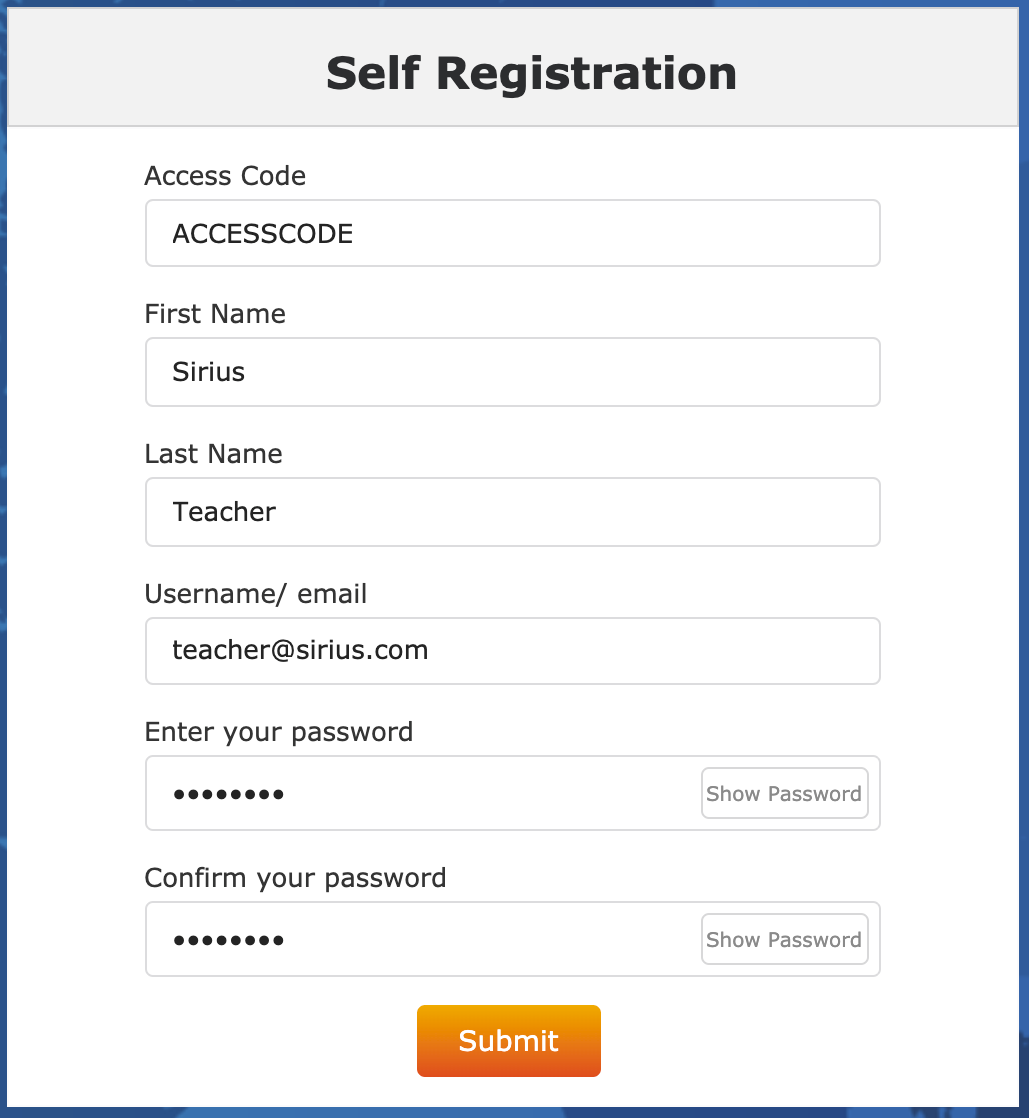
Click Submit.
Once your registration is successful, check your email for a message from noreply@content2classroom.com.
It may take up to 15 minutes to receive the email. If it doesn't arrive, check your spam folder.
Note: You must click the hyperlink in the confirmation email (or paste it into your browser) to complete the last step of your registration.
Choose Take me to my home page to return to the login page and sign in.
Use your newly created credentials to log in.
Supporting Student and Co-Teacher Self-Registration
Once classes have been created and courses have been added to classes, students and co-teachers are able to register to become members of a class. A Student Access Code is required for students; a Co-teacher Access Code is required for co-teachers.
Gathering Access Codes
Classes are visible from the Classes Tab.
Choose Roster from the Class Card (the option in blue below the class name).
The Student Access Code is listed to the right in the main screen.
The Co-Teacher Access Code is listed directly below the Student Access Code.
Note: A different access code is used when students or co-teachers access other Sirius classes. They can join a second or subsequent class using a different access code (vs. having to register for a new second account).
The first time a student logs into the Sirius Online application they will use the Class Access Code to
Log in to the application
Enroll in the class
- Students and co-teachers who logged in previously will use their existing username and password to login to join a new class.
- Students and co-teachers cannot self-register until after a teacher has completed self-registration and class setup.
Instructions for Student and Co-Teacher Self-Registration
Steps:
Go to: sirius.content2classroom.com.
Click the Sign Up button.
Complete the Self-Registration form using the Access Code you provided to them.
Note: Students should not enter an email address, though co-teachers will need to.

Once complete, click the Submit button.
On the new screen, students click the Take me to my home page button.
As was true for teachers, co-teachers must locate a confirmation email and click the link to verify they are teachers prior to logging in.
Once a course has been assigned, a student’s home screen will show Books and Assignments. A co-teacher’s screen will display the teacher dashboard.
Enrolling in a Second Class
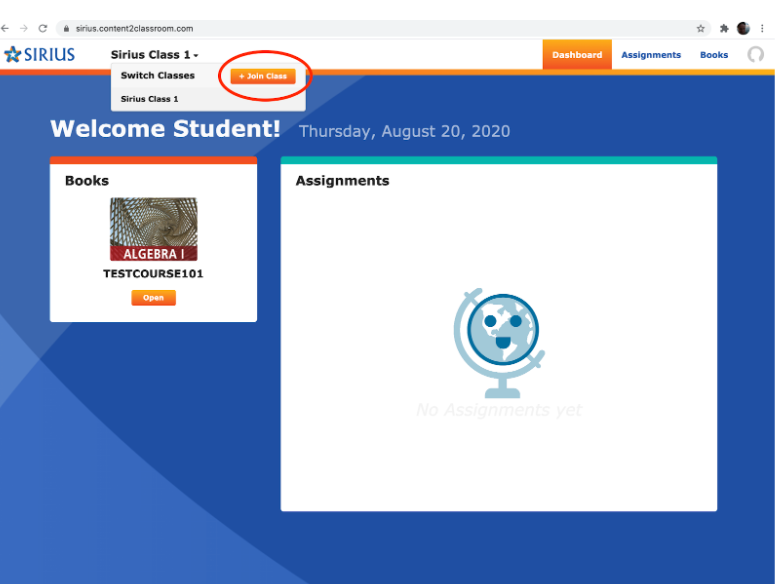
To join a second class, click the + Join Class button in the pulldown menu and enter the new class student or co-teacher access code.
- Register students: When teachers register student accounts, they can better control username and password formats and access
- Provide unique credentials: Teachers can ensure that credentials are unique and secure.
Related Articles
Sirius Online User Guide: Teachers, Co-Teachers, and Tutors
Introduction Welcome to the Sirius Online Users Guide for Teachers, Co-Teachers and Tutors, a reference to help you understand how you can best use our platform in your classroom. We created this document to save teachers, coaches, and subject-area ...Adding Co-Teachers at Rostered Districts
If your district rosters through Clever, ClassLink, Edlink, or another Learning Management System (LMS), follow these steps to invite co-teachers to a class. Access Class Settings From your dashboard, navigate to the class card. Click Class Settings ...Assigning and Administering STAAR Summative Assessments: A Guide for Teachers
Assigning District Assessments to your Class Assigning district-prepared assessments in Sirius Online uses the same workflow as adding courses to your Class Card. To get started, follow these three simple steps to login, add assessments to your ...Sirius Online User Guide: Students
To prevent student access to our open support and Knowledge Base site (where you are currently viewing this article), please avoid sharing the browser link. Instead, use or download the PDF attached at the bottom of this page. This guide was designed ...Creating Quick Pullout/Breakout Classes at Rostered Districts: Clever, ClassLink, and Edlink
To create pullout or breakout classes, your organization must be actively sharing teacher and student account data with Sirius Online through Clever, ClassLInk or Edlink —or must have successfully shared this data in the past. Initial Setup ...